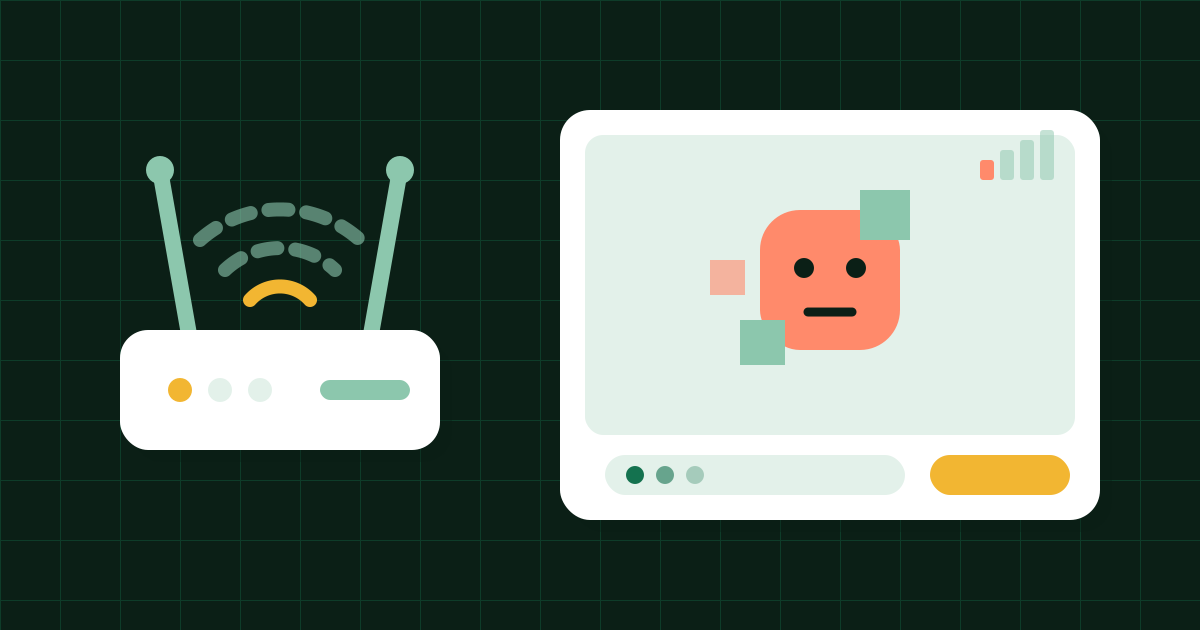
You finally match with someone fun, and their face turns into a watercolor painting. Then their voice goes metallic. Then the picture freezes on a blink, which is nobody's best look.
Live video is one of the most demanding things you can ask a home connection to do, because it can't buffer ahead like a streaming show. Every second has to arrive now or not at all. The upside is that most bad calls come down to a handful of fixable causes. Here's how to find yours.
Is it you or them?
Before you start moving furniture, figure out whose connection is struggling. Random chat helps here, since you get a new test subject every time you press Next.
- Every match looks blurry or choppy. That's almost certainly your side. The odds of meeting five people in a row with bad Wi-Fi are low.
- One match is a mess, the next is fine. That's them. Nothing to fix, though you can type a quick note so they know.
- People keep asking if you're still there, or the conversation seems to lag behind what you said. Your upload is likely the weak link. Sending video is usually harder on a connection than receiving it.
- Text messages arrive late too. If even the chat box is slow, the whole connection is struggling, not just the video.
- Other things on the same network are slow. If a web page takes ages to load in another tab, it's the network, not the call.
Quick fixes for weak Wi-Fi
Wi-Fi gets weaker with distance and with every wall, floor and fridge in the way. Most of the fixes are boring, and most of them work.
- Move closer to the router, or at least into the same room. Even a few meters with fewer walls can turn a frozen call into a watchable one.
- Get the phone or laptop off your lap and up high. Bodies and couch cushions absorb more signal than you'd think.
- Try the other band if your router has two. Many routers offer a 5 GHz network next to the usual 2.4 GHz one. The 5 GHz band is generally faster but has a shorter reach, so it's often the better pick when you're close to the router.
- Restart the router. It's a cliche because it sometimes fixes things. Give it a couple of minutes to come back.
- Plug in a cable if you're on a laptop near the router. A wired connection skips Wi-Fi trouble entirely.
- Turn off a VPN for a moment if you're using one. Routing your traffic through an extra stop can add delay, and Omigol already keeps your IP address from your match because calls are relayed through its server.
Something else might be eating your bandwidth
Your connection is shared by everything on it, including things you forgot were running. Live video needs a steady trickle in both directions, and a big download can flood the pipe for minutes at a time.
Common culprits: a game or system update downloading in the background, a cloud backup syncing your photos, a torrent, other browser tabs playing video, or someone else in the house streaming in 4K. Pause what you can. On a computer, closing other tabs also frees up the processor, which matters more than people expect on older laptops.
Timing plays a part too. Home networks and local providers tend to be busiest in the evening when everyone is online at once. If your calls are rough at 9 p.m. and fine after midnight, that may be why, and the late-night video chat post has more on what the small hours are like.
Switching networks, or going to mobile data
If nothing above helps, try a different connection. On a phone, turn off Wi-Fi and use mobile data. A decent 4G or 5G signal often beats a weak or overcrowded Wi-Fi network, and Omigol runs in the browser, so you don't need to reinstall or log in again.
Two warnings. Video uses a lot of data compared with browsing, so keep an eye on your plan if it has a cap. And mobile signal varies just as much as Wi-Fi: one bar in a basement isn't an upgrade. Stand near a window if you can.
Calls of three ask more of your connection than one-on-one, since you're receiving two video streams at once. If trios keep stuttering while one-on-one is fine, switch back to 1 stranger for a while. The calls of three post covers how those calls work.
Why school and work networks often block live video
Sometimes the problem isn't speed at all. You press start, the page loads, matching works, the text chat works, and the video simply never connects. That's usually a network rule, not a slow line.
Schools, offices, libraries and some cafes run firewalls that only let through the kinds of traffic they expect, such as normal web pages. Live video travels in a different way, built for speed rather than guaranteed delivery, and strict firewalls often drop it. Some do it to save bandwidth, some for security, and some just to stop people from doing exactly what you're trying to do.
There's no setting on Omigol that fixes this, and trying to sneak around a work or school network can get you in more trouble than a frozen call is worth. Mobile data or a home connection is the honest fix. The video page has troubleshooting for camera and connection problems.
When video won't cooperate, type
The text chat sits right beside the video and needs only a tiny fraction of the data. When the picture keeps freezing, say so in the chat, then keep the conversation going there while the video catches up. A lot of people are perfectly happy to talk in text for a bit, especially if you're funny about it.
If the audio is the problem (echo, crackle, your voice coming out in pieces), hit mute and type instead. Bad audio is harder to sit through than bad video, and your match will thank you.
And if a call is beyond saving, press Next. You lose nothing, and the next person might be on a better connection, or you might have just walked closer to the router.